


Two-Factor Authentication (2FA) is an essential security feature that adds an extra layer of protection to your SSL.com account. In addition to your password, 2FA requires a second form of verification making it much harder for unauthorized users to access your account, even if your password is compromised.
Enabling 2FA is strongly recommended to safeguard sensitive information, prevent account takeover, and enhance the overall security of your digital assets. While 2FA is optional, accounts without it are significantly more vulnerable to hacking and phishing attacks.
This guide will show you how to enable or disable 2FA for your SSL.com account and explains the three available 2FA methods: Authenticator App, Email Code, and SMS Code. All three methods can be simultaneously enabled and used for your account, giving you multiple options to login.
Enable Two-Factor (2FA) Authentication
- Login to your SSL.com account.
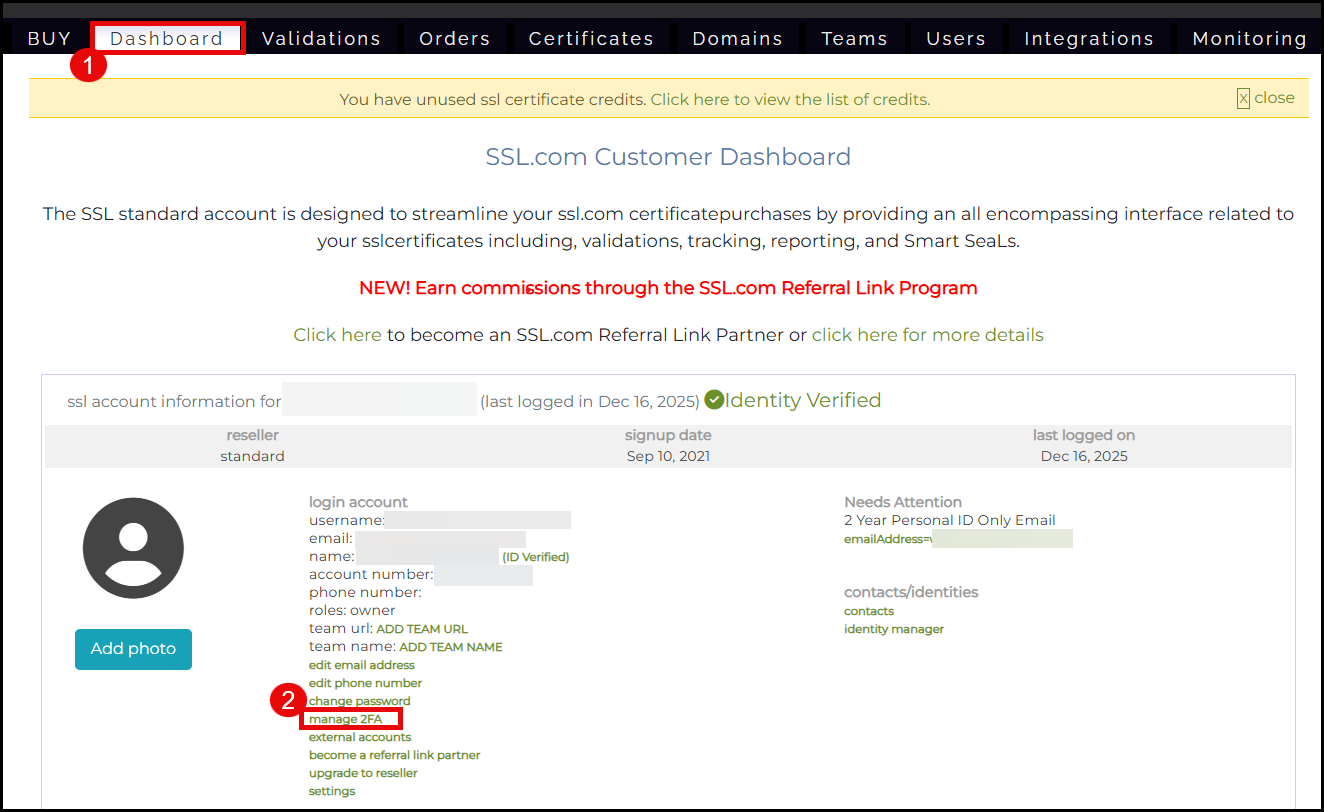
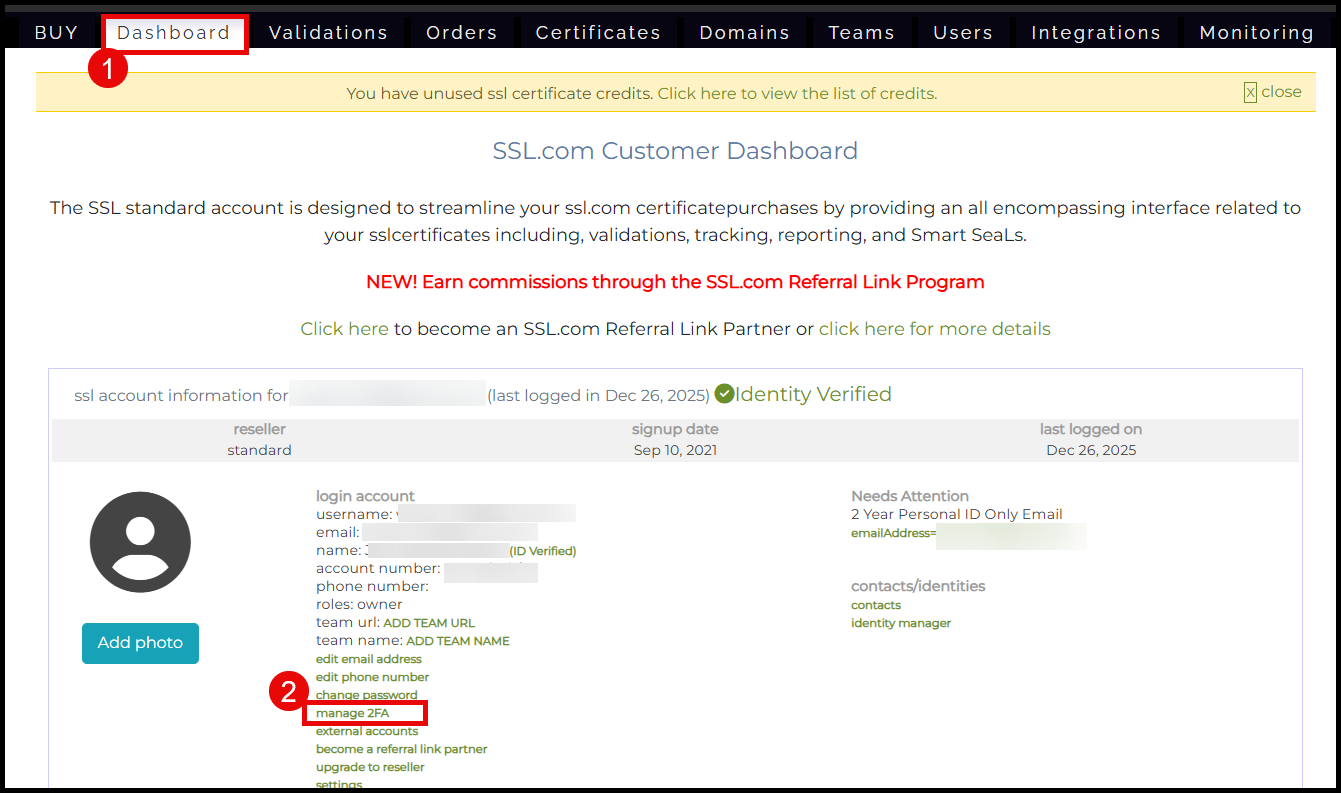
- Click Dashboard from the top menu, then scroll down and click manage 2FA.

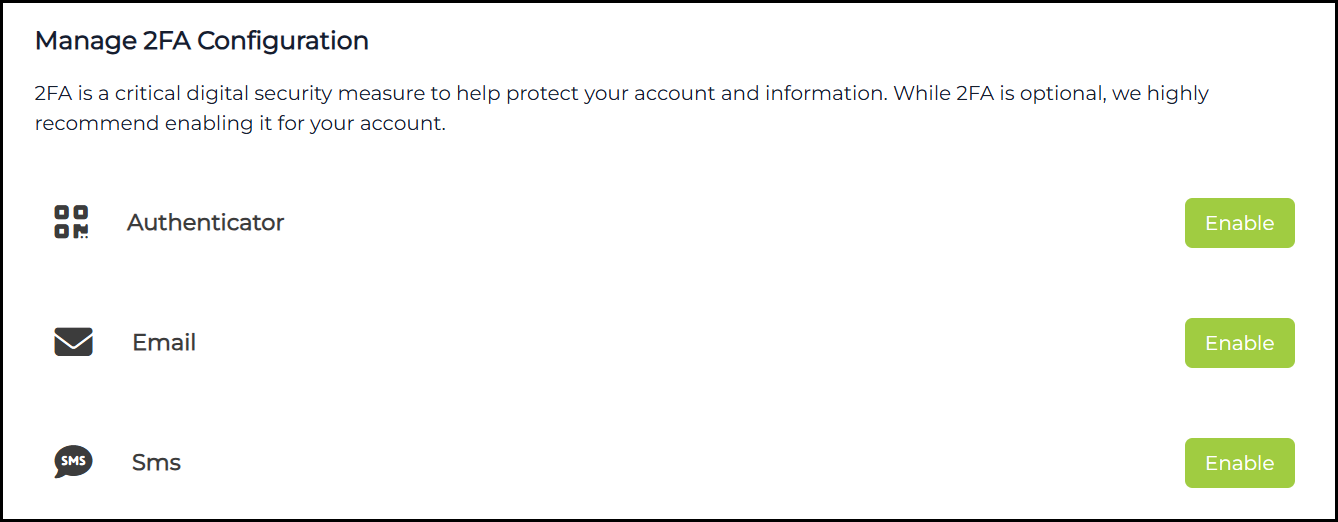
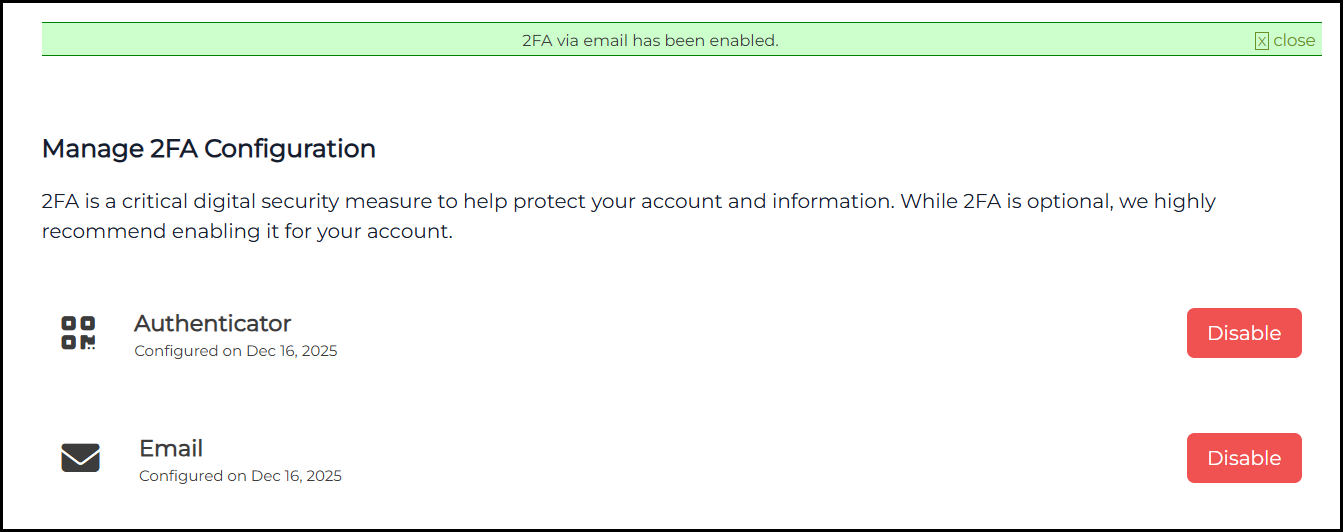
- You will see the list of 2FA options. Choose which one to use by clicking the Enable button.

Authenticator App
Generates time-based, one-time codes on your smartphone or tablet. Popular apps include Google Authenticator and Microsoft Authenticator.
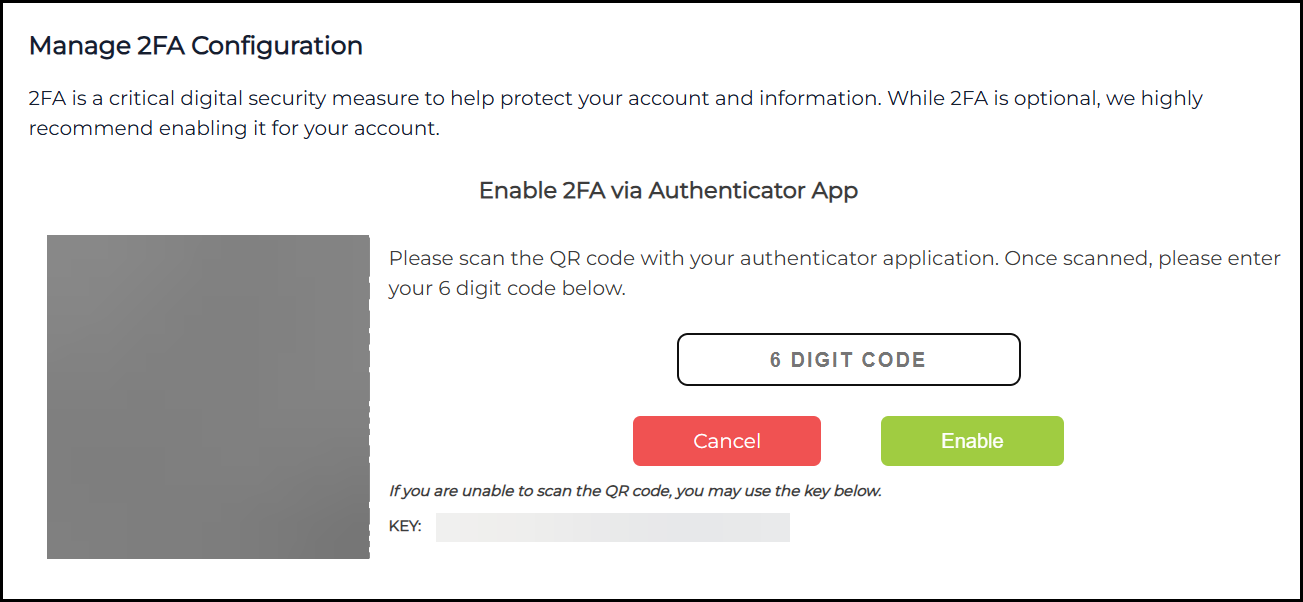
- Click the Enable button for Authenticator.

- Open the authenticator app on your mobile phone and scan the QR Code. Once scanned, enter the 6 digit code from your authenticator app and then click the Enable button.

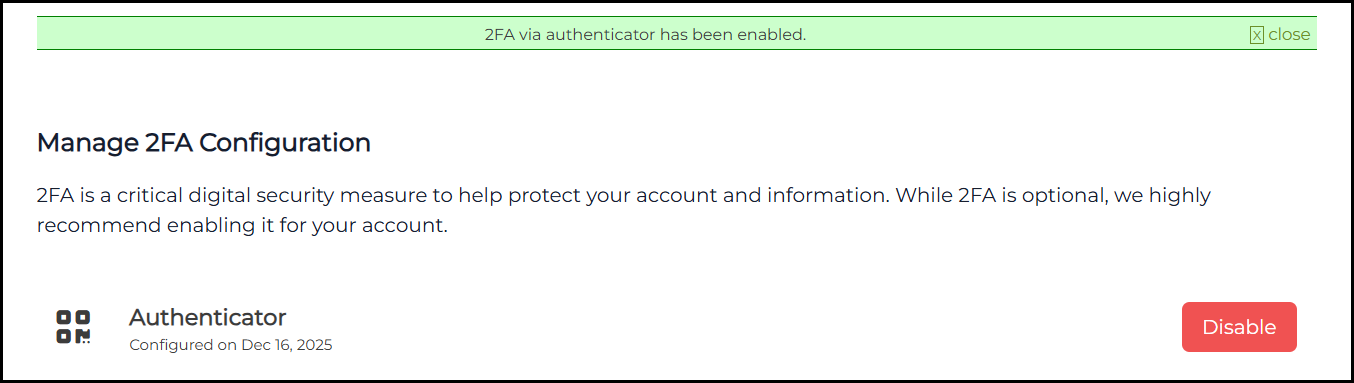
- 2FA through your authenticator app is now enabled.


Sends a verification code to your registered email address each time you log in. This option is convenient and accessible without additional apps, making it ideal if you prefer simplicity.
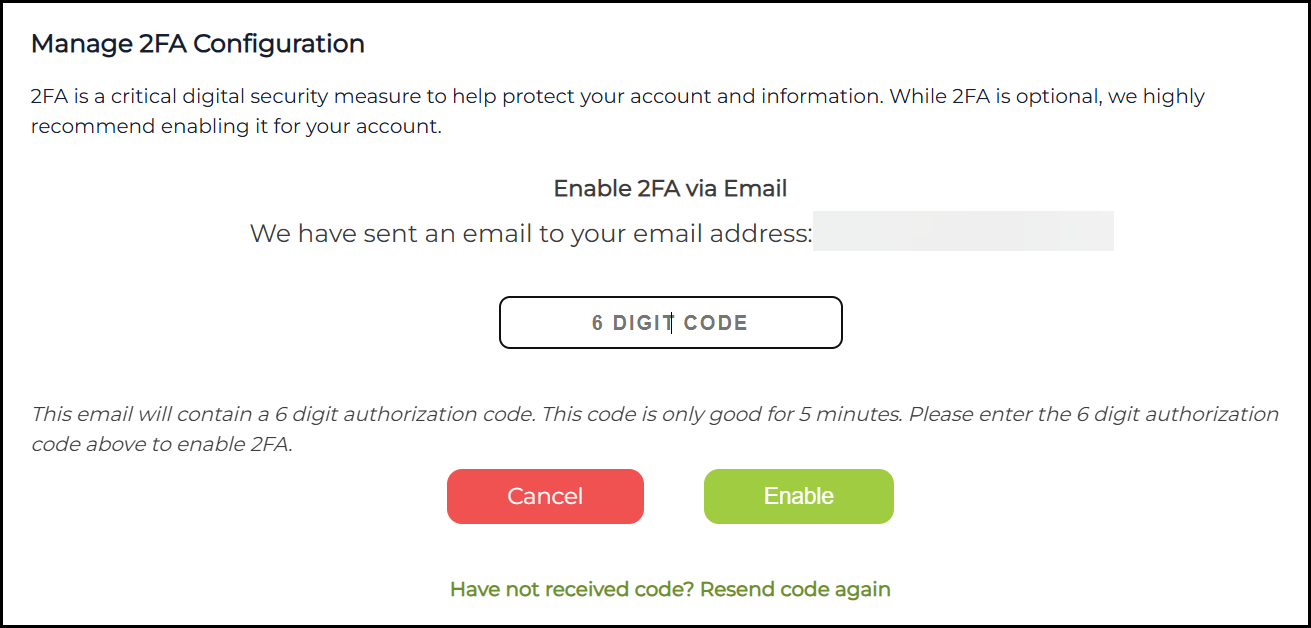
- Click the Enable button for Email.

- A verification code will be sent to your email address. Place the code in the box and then confirm by clicking the Enable button.

- 2FA using your email is now enabled.


SMS
Sends a verification code to your mobile phone via text message. This method provides quick access and is useful if you frequently need to log in on the go.
Note: For some countries, the SMS method might not be available. In this case, use the Authenticator or Email option.
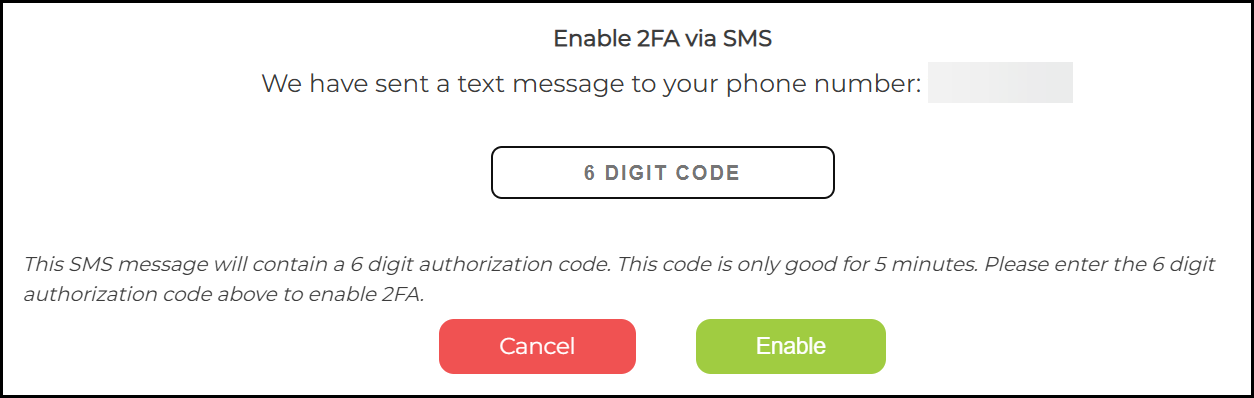
- Click the Enable button for SMS.

- Enter the SMS code sent to your phone number and then click the Enable button.

- 2FA through SMS is now enabled for your account.

Disable Two-Factor (2FA) Authentication
- Click Dashboard followed by manage 2FA.

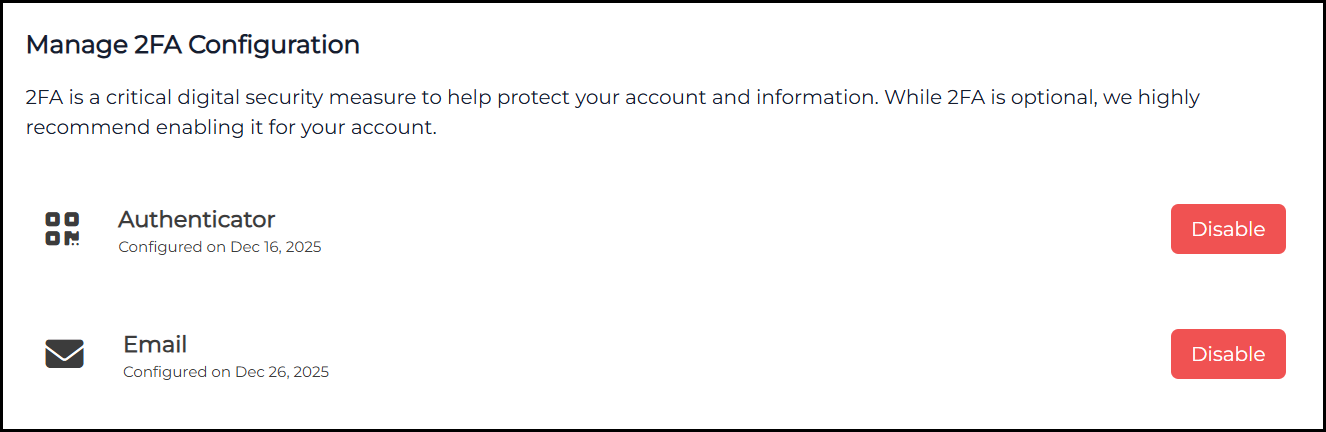
- Select which 2FA option you want to turn off. Click the Disable button to confirm.

Other Useful Guides
- Your SSL.com Account – Signing Up
- Your SSL.com Account – the Dashboard
- Your SSL.com Account – Orders
Thank you for choosing SSL.com! If you have any questions, please contact us by email at Support@SSL.com, call 1-877-SSL-SECURE, or just click the chat link at the bottom right of this page. You can also find answers to many common support questions in our knowledgebase.